An editable restaurant menu is useful only while its prices and descriptions match what the business actually sells. Canva can help arrange the page, but the owner needs to supply the facts and approve the files that customers and the printer will receive. This guide uses one Canva master to produce a phone PDF and a separately checked print PDF. It is based on Canva's menu maker and current Help Center instructions, checked 22 October 2026. BIG CHANGE did not create, export, print or test a real menu.
Start with the approved menu record
You need a Canva account; a dated, owner-approved list of items, variants or sizes, prices and currency; and any descriptions, ingredients, allergen or dietary wording that the owner or knowledgeable staff has verified. Gather the approved logo and actual-dish photos only if you have permission to use and crop them. Decide how customers will receive the phone file, and obtain the chosen printer's finished size, bleed, crop-mark, color and proof requirements before laying out the print version. Check who can see the Canva workspace before uploading business records or images.
Make a check table with one row for every visible menu item and separate fields for its name, variant, price and any claim about ingredients or diet. Record the source sheet's date or revision. Leave an unavailable item and any unverified claim off the design until the owner resolves it. Canva's text generator can draft wording, but it cannot establish what a kitchen uses or what a dish contains.
1. Build an editable master
Open Canva's restaurant-menu maker and choose an editable menu layout. Check that its page size suits the printer's finished size. Replace all sample text, prices, logos and imagery; a template's examples are not business facts.
If your account offers design generation, Canva documents a route from Canva AI on the home page: enter a short description, add approved text, images or brand context with the + control if needed, submit, then select Edit design to work in the full editor. Its Magic Design instructions also describe a route through Templates in the editor: search with four or more descriptive keywords, choose Try Canva AI, review the prompt and add the generated page. Ask for a restaurant-menu layout with clear categories and room for item names, variants and prices. Supply approved copy as context only if your workspace and data policy permit it. Replace any invented content in the resulting page. If the AI option is unavailable or produces a cramped design, continue with an ordinary editable menu template.
Canva classifies “Generate a design with Canva AI” as a Premium AI tool. Its eligibility and shared allowance vary by plan; check the actual account before relying on it. Magic Write is optional for wording and may produce inaccurate text. Compare every proposed sentence with the approved record. Use actual, rights-cleared dish photos or no dish photo; generated food should not be presented as a picture of the served dish.
2. Check each visible fact in the master
Read the design against the dated table, line by line and page by page. Check every price digit and currency mark, size or variant, item name, description and ingredient, allergen or dietary phrase. Check any business name, contact detail, opening time or ordering link that appears. Confirm that photos depict the intended dishes, are permitted for this use and remain truthful after cropping. An owner or designated knowledgeable staff member must resolve uncertain food claims before they are shown to customers.
For a print design, Canva's margin and bleed guide places Show margins and Show print bleed under File > Settings, with File > Rulers and guides as a possible alternative. Keep prices, item names and other essential text inside the margin. Extend a full-page background into the bleed area, where it may be trimmed. These controls are unavailable in Canva Docs, so use a supported design format. Canva's fixed bleed can differ from the printer's specification; ask the provider to confirm the file rather than assuming the on-screen guides settle it.
3. Download and read the phone PDF
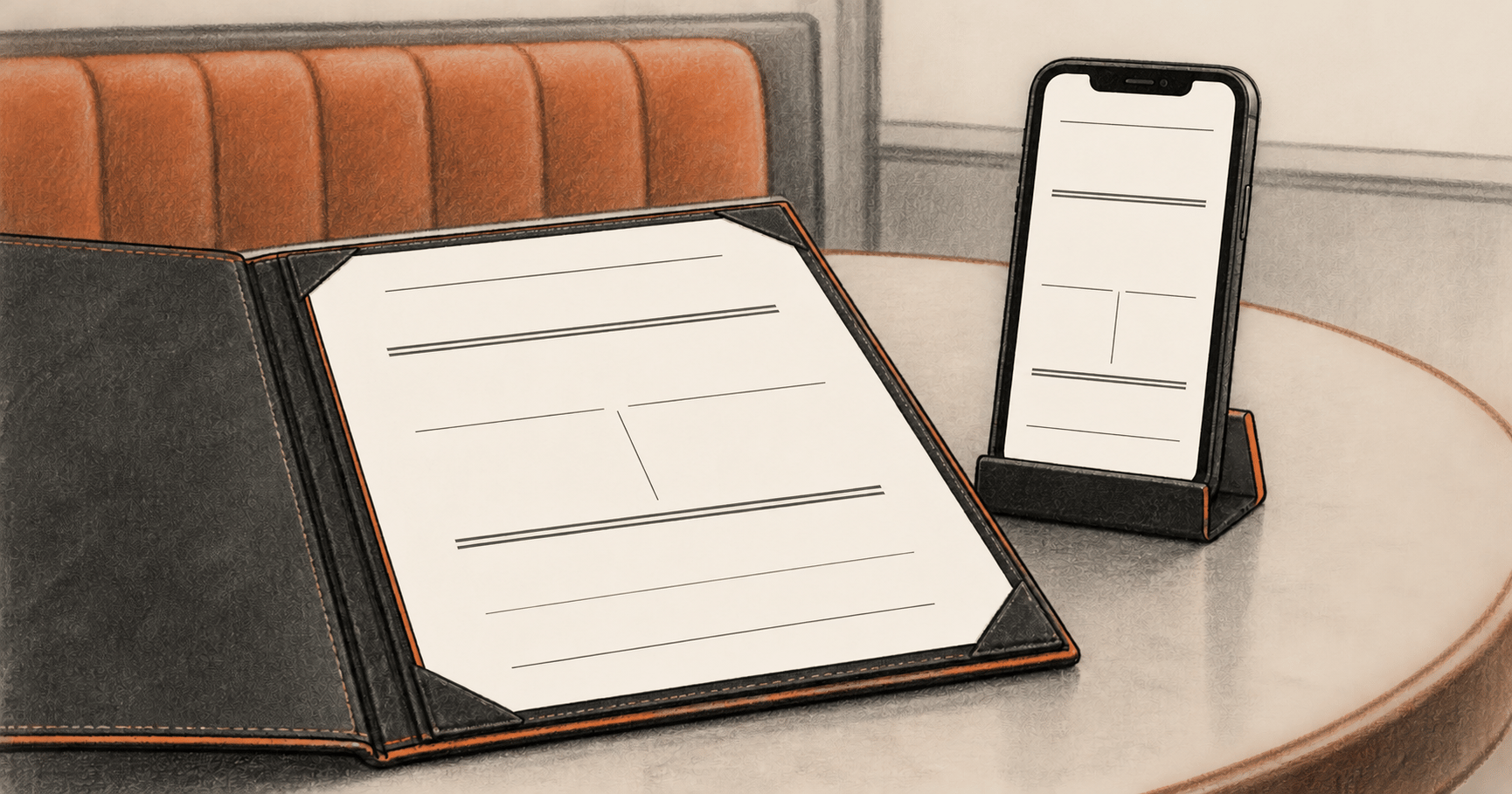
In the checked master, choose Share > Download, select PDF Standard, choose the intended pages and download. Canva identifies PDF Standard as the digital-document option; its download guide describes page selection and warns about premium elements or export problems. Give the file a name that identifies the menu revision and digital destination.
Open the downloaded PDF on an actual phone through the route customers will use. At ordinary viewing size, inspect every page for readable names, variants, prices and any essential food information. Check that pages are in order and links work if you included them. If the reader must repeatedly zoom or content is missing, simplify the layout or divide it into pages in the master, then download and inspect a new file. A desktop editor view does not establish phone readability.
4. Prepare the printer's PDF
Confirm the design's finished dimensions against the chosen provider's requirements. In Share > Download, select PDF Print and the intended pages. Canva describes PDF Print as its higher-resolution print export, with bleed, crop-mark and color-profile options. Select crop marks and bleed when the provider asks for them; use the requested color setting if the account offers it. Canva says CMYK PDF is among the additional download options available to eligible plans. If the needed setting is absent, check the account and ask the printer what file it can accept before ordering.
Open the actual downloaded print PDF and check its page count, physical dimensions, image quality, text, trim area and price accuracy. Compare its bleed and marks with the provider's specification. Canva's own printing guidance notes that printer support varies. Send the file for a provider proof when required and review that proof at the intended size. PDF Print is a file type, not evidence that the chosen printer has accepted the file or that a finished menu has been inspected.
5. Record the owner's decision and maintain the master
Present the owner with the dated source-sheet revision, the editable Canva master, both downloaded file names, the phone check and the printer's acceptance or proof result. Record a dated accept or reject for the digital and print destinations separately. Release only the accepted destination. If a price, item or claim changes, correct the master first, re-export each affected file, repeat its checks and replace the distributed copy. Keep the source revision and file names together so an old price cannot quietly return.
If a download asks for payment or says Fix issues, inspect the flagged element or problem; replace unapproved premium content or obtain an approved license before exporting. Canva warns that PDF downloads with cropped images may retain the full original image, accessible in a PDF editor. Remove sensitive material from the source image or recreate a safe version before sharing either PDF. Template, AI, stock-asset and printing costs depend on the account and provider; this guide establishes no price, time saving or finished result.
The big change
Canva's design tools let an owner turn an approved menu record into an editable layout and two PDF types. The useful control is the chain from the current item sheet through the master to the actual phone and print files. AI can arrange or suggest content, while the owner supplies and checks every menu fact. Phone reading and printer acceptance happen outside Canva's layout suggestion and must be checked on the files that will be used.
Sources & further reading
- Canva restaurant-menu maker describes editable menu layouts and PDF output. Its promotional claims about speed or quality are not measured here.
- Magic Design, Magic Write and AI access explain design and text assistance, controls and plan limits. They provide no assurance that generated menu facts are correct.
- Download instructions and file types distinguish the two PDF exports, plan-dependent options and the cropped-image privacy risk.
- Margins, bleed and crop marks and printing guidance describe Canva's controls. The selected printer's specifications and proof determine whether that print file is acceptable.