# A Mac agent can point to the step you must decide
> Set up Big Arrow on the Screen to give a Mac agent a temporary visual cue for a step you must inspect and perform yourself. Includes exact commands, permissions and recovery.
By BIG CHANGE Editorial
Published: 2026-10-09T19:08:58.327Z
Updated: 2026-10-09T19:08:58.327Z
Canonical: https://bigchange.ai/blog/mac-agent-screen-cues-human-handoff-guide
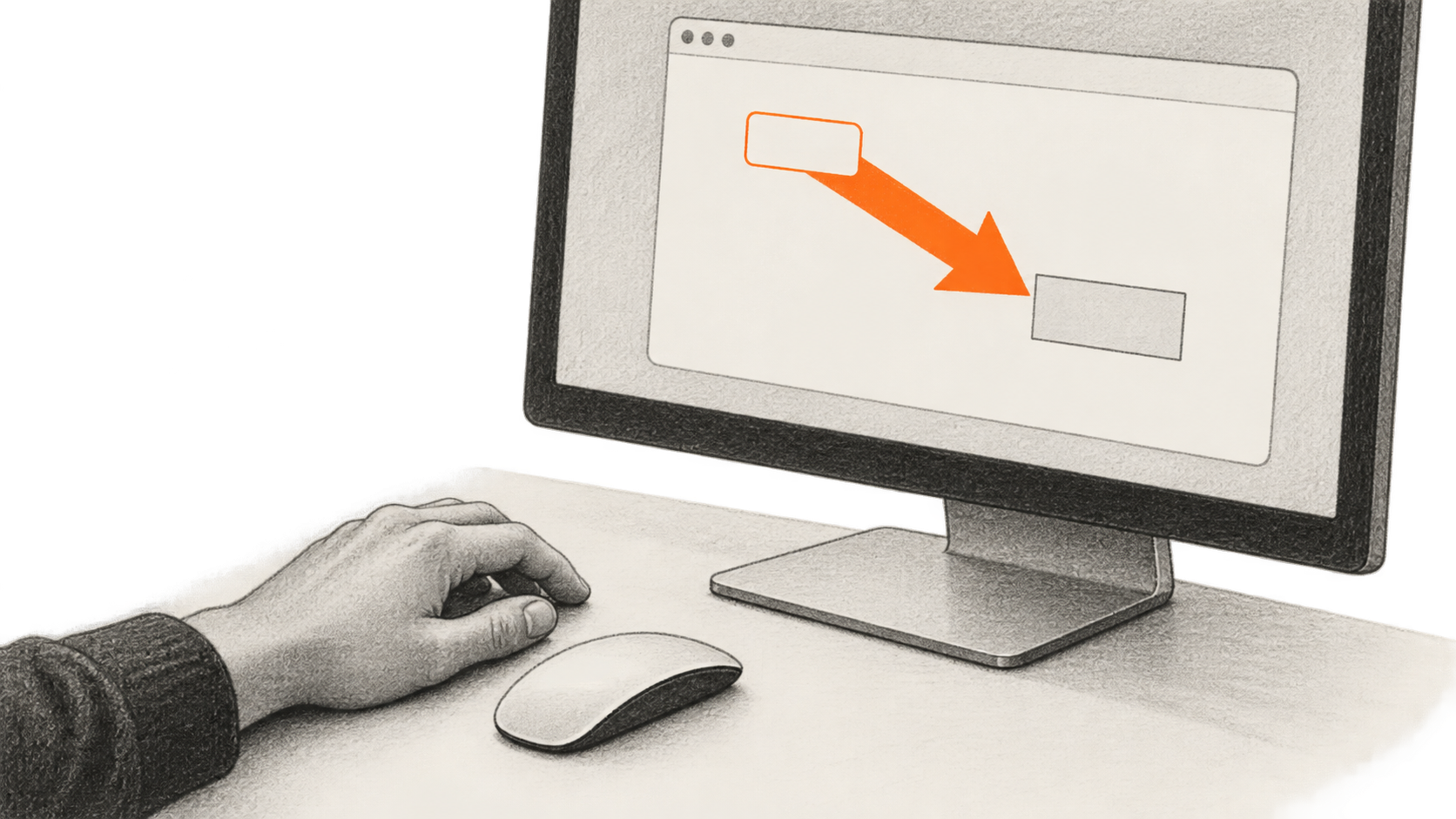
AI-generated conceptual illustration by BIG CHANGE. The generic screen is not a Big Arrow screenshot or a tested handoff; the person alone decides whether to act.
An AI coding agent can ask you to approve a permission, enter a code or confirm a payment, but a message in its terminal may not tell you which control it means. On a Mac, Big Arrow on the Screen gives the agent a narrower way to help: it can place a temporary arrow and sentence over a window while you inspect the screen and make the decision. This guide uses the project's v0.4.3 documentation, dated October 9, 2026. BIG CHANGE did not run the tool.
## The big change
- **What changed:** A shell command can now give a Mac agent a visible pointer for a handoff to its user. The overlay can mark a window or control and then expire; the command itself contains no AI and performs no click.
- **Why it matters:** A person asked to grant access, solve a CAPTCHA or approve a charge can locate the relevant control without handing that decision to the agent. The sign should say what the action does, so the cue helps rather than substitutes for judgment.
- **What to watch:** Targeting by label needs macOS Accessibility access, while some window-title targeting also needs Screen Recording. The permission belongs to the terminal or IDE that starts the command. Choose a targeting method with the access you are willing to grant.
## Before you begin
You need a Mac and Homebrew for the documented installation below. The [project README](https://github.com/franzenzenhofer/big-arrow-on-the-screen/blob/v0.4.3/README.md) gives macOS 14 or newer and Xcode 16 or newer as requirements **for building from source** with `swift build -c release`; its release build is `.build/release/bigarrow`. The README does not state that Xcode is required for the Homebrew installation. The project distributes an agent skill for Claude Code and Codex, but the CLI also works when called directly. Make sure the agent is allowed to run the local command before asking it to point.
Decide what you will point at before involving an agent: a whole window, a labeled control or known screen coordinates. The input is that target plus the words on the sign and, optionally, a duration. The output is an overlay on your Mac, not a click or a screenshot. The examples below are documented commands and a suggested use pattern, not a report of a BIG CHANGE test.
## Set up a cue that leaves the action to you
1. **Install the CLI and agent skill.** In your Mac terminal, run:
```bash
brew install franzenzenhofer/tap/bigarrow
bigarrow install-skill
```
The project says `install-skill` places instructions for Claude Code in `~/.claude/skills` and for Codex in `~/.agents/skills`. Read the installed skill and your agent's command permissions before allowing it to run the CLI. [Installation and skill layout](https://github.com/franzenzenhofer/big-arrow-on-the-screen/blob/v0.4.3/README.md#install)
2. **Try a window cue first.** Open Safari, then issue this command yourself or ask your agent to issue it:
```bash
bigarrow point --window "Safari" --text "Look at this Safari window" --duration 8
```
The README documents `--window App` as a target that needs no macOS drawing permission. `point` defaults to eight seconds; the explicit duration makes the expected end clear. You should see a sign and arrow, then see them disappear. The project says a click near the arrowhead reaches the app below, while clicking the sign or shaft dismisses the cue. Do not use a consequential button as the first click-through check. [Commands and behavior](https://github.com/franzenzenhofer/big-arrow-on-the-screen/blob/v0.4.3/README.md#the-three-commands-an-agent-needs)
3. **Give the agent a narrow handoff instruction.** For a step you must decide and perform, ask the agent to open the relevant pane or page when it has a documented way to do so, point to one target, write what the action would authorize, and wait for you. For example: “Point to the permission control and name the access it grants. Do not click, type, capture the screen or continue until I respond.” The [project skill](https://github.com/franzenzenhofer/big-arrow-on-the-screen/blob/v0.4.3/skill/big-arrow/SKILL.md) uses `bigarrow start <target> --text "<full sentence>"`, watches for the human's response or result, then calls `bigarrow stop`. It instructs the agent to state what an approval, payment, signature, send or deletion would do on the sign. Those are instructions for the agent, not proof that it will obey them; review the action yourself.
4. **Target the actual control only when you need to.** For a native app's labeled control, the documented syntax is `bigarrow start --element "Allow" --app "System Settings" --text "Click Allow: <specific access granted>"`. Replace the label, app and explanation with what is actually on your screen. `--element` uses Accessibility. If the label is uncertain, `bigarrow elements --app "System Settings"` lists matches. For an app window rather than a control, use `--window "Safari"`; an `App:title` target can require more access. `--at X,Y` and `--rect X,Y,W,H` accept global top-left logical coordinates when you already know them. Do not guess coordinates for a payment or consent decision. [Target syntax](https://github.com/franzenzenhofer/big-arrow-on-the-screen/blob/v0.4.3/README.md#the-three-commands-an-agent-needs)
5. **Check the result and clear the cue.** Read the underlying page or dialog, verify the recipient, amount or permission yourself, and choose whether to act. Once you have acted or declined, tell the agent and use `bigarrow stop` for an overlay started with `start`. The README says `start` otherwise expires after 300 seconds by default; `--duration 0` removes that limit, so avoid it for a handoff you may forget. A visible cue, a dismissed cue and a completed action are different events. Have the agent check the actual result before it continues. [Lifetime and skill pattern](https://github.com/franzenzenhofer/big-arrow-on-the-screen/blob/v0.4.3/skill/big-arrow/SKILL.md#the-one-pattern)
## If the arrow is missing or points badly
Run `bigarrow doctor` when a command reports missing permission. The README documents exit code 4 for that case, 3 when a target is not found and 2 for bad input. The permission goes to the app running your shell, such as Terminal, Ghostty or VS Code, rather than to `bigarrow`. Drawing and `--window App` need no permission. `--element`, `elements` and some app-title actions need Accessibility; `--window App:title` needs Screen Recording to read titles on macOS 26 and Accessibility to raise the window unless `--no-raise` is used. On macOS 27, the Accessibility list may appear as “Device Control and Data Access.” Grant only the access your chosen method needs. [Permission table](https://github.com/franzenzenhofer/big-arrow-on-the-screen/blob/v0.4.3/README.md#faq)
If the wrong control is selected, stop the arrow and inspect the available labels or use a known window target. The README says Chrome page elements require Chrome's accessibility renderer flag or VoiceOver, although Chrome's toolbar can be found without that condition. `--dry-run --json` reports where a command would point without drawing; check that location before a consequential handoff. An overlay bound to an app hides when another app covers its target. `--no-raise` keeps the tool from bringing the app forward, which can also leave the cue out of view. [Targeting and limitations](https://github.com/franzenzenhofer/big-arrow-on-the-screen/blob/v0.4.3/README.md#faq)
## Cost and limits
The repository is [MIT licensed](https://github.com/franzenzenhofer/big-arrow-on-the-screen/blob/v0.4.3/LICENSE) and documents no account, telemetry or service fee for the CLI. Homebrew, a Mac and any AI agent you choose are separate parts of the setup; check the agent's own plan and usage cost. The CLI has no AI and never clicks, types or captures. Its `--png` feature can render an arrow into an image file for documentation, but that is different from capturing your screen. The maintainer reports 91 automated tests and 17 behavior checks for v0.4.3; these are the project's claims, not BIG CHANGE's independent verification. [README and verification claims](https://github.com/franzenzenhofer/big-arrow-on-the-screen/blob/v0.4.3/README.md#how-we-know-it-works)
## Sources & further reading
- [Big Arrow on the Screen README, v0.4.3](https://github.com/franzenzenhofer/big-arrow-on-the-screen/blob/v0.4.3/README.md) documents installation, commands, timeouts, targeting and permissions. It is the maintainer's description; BIG CHANGE did not test the tool on a Mac.
- [Big Arrow agent skill, v0.4.3](https://github.com/franzenzenhofer/big-arrow-on-the-screen/blob/v0.4.3/skill/big-arrow/SKILL.md) gives the `start`/`stop` handoff pattern and tells agents to describe the consequence of sensitive actions. A skill instruction does not guarantee an agent will follow it.
- [Changelog, v0.4.3](https://github.com/franzenzenhofer/big-arrow-on-the-screen/blob/v0.4.3/CHANGELOG.md) dates the release to October 9, 2026 and records the permission-language and skill changes. The [Swift package file](https://github.com/franzenzenhofer/big-arrow-on-the-screen/blob/v0.4.3/Package.swift) declares macOS 14 as the package platform; the README states Xcode 16 or newer for a source build.
- [MIT license](https://github.com/franzenzenhofer/big-arrow-on-the-screen/blob/v0.4.3/LICENSE) governs reuse of the project. It does not establish the price or data practices of any separate agent service.
## Sources
- [Big Arrow on the Screen README v0.4.3](https://github.com/franzenzenhofer/big-arrow-on-the-screen/blob/v0.4.3/README.md) — Documents installation, commands, timeouts, permissions and maintainer feature/test claims; no independent BIG CHANGE runtime test.
- [Big Arrow agent skill v0.4.3](https://github.com/franzenzenhofer/big-arrow-on-the-screen/blob/v0.4.3/skill/big-arrow/SKILL.md) — Documents agent handoff pattern, sensitive-action wording, targeting and recovery; an instruction is not a guarantee of agent conduct.
- [Changelog v0.4.3](https://github.com/franzenzenhofer/big-arrow-on-the-screen/blob/v0.4.3/CHANGELOG.md) — Dates version 0.4.3 and records its fixes and changes; tagged commit 0c276222640a85f55e54c1912b1f71a4a060a35e.
- [Swift package manifest v0.4.3](https://github.com/franzenzenhofer/big-arrow-on-the-screen/blob/v0.4.3/Package.swift) — Declares macOS 14 package platform; README separately gives Xcode 16+ for source build.
- [MIT license v0.4.3](https://github.com/franzenzenhofer/big-arrow-on-the-screen/blob/v0.4.3/LICENSE) — Establishes project license, not third-party agent subscription prices.
The BIG CHANGE newsletter
The big picture. At your pace.
Recent stories on AI and robotics, the shifts worth watching and practical ideas to use. Choose a daily briefing, weekly digest or monthly perspective.
Next scheduled send (UTC): . Your first edition arrives at the next scheduled send after you confirm.
Your privacy, your choice.
Necessary storage supports site security and remembers your choices. Optional Google Analytics stays off until you allow it. You can read every story with necessary storage only. Privacy details