# Signal adds screen controls against OS-level AI assistants
> Signal’s new controls address AI screen reading. Encryption and permissions on a receiving device protect different boundaries.
By BIGCHANGE.AI Editorial
Published: 2026-11-21T16:19:38.371Z
Updated: 2026-11-21T16:19:38.371Z
Canonical: https://bigchange.ai/blog/signal-screen-privacy-ai-assistants
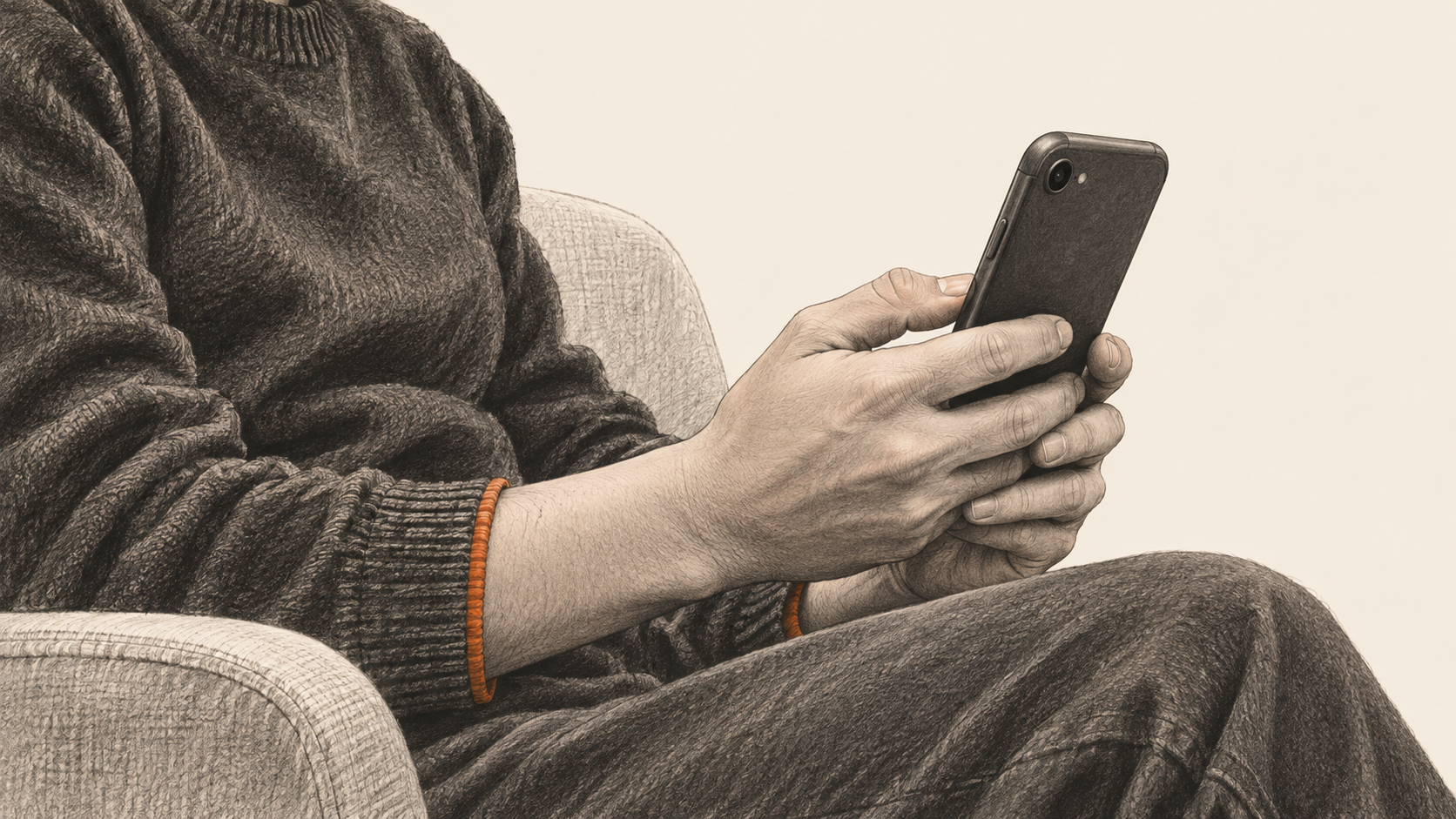
AI-generated conceptual illustration for BIG CHANGE; fictional phone use, with no message content or product UI.
On November 20, Signal announced screen protections limiting operating-system AI assistants’ access to conversations.
## The big change
- Signal’s controls give supported iPhones a default block; Android activation follows detection of an assistant’s attempted screen access.
- Screen context can be an input to an assistant’s answer. Google’s documentation shows that input can contain a screenshot or visible text, rather than just an app’s name.
- Apple’s Mac manual describes an exclusion list for Siri, Search and suggestions. Restricting access also removes those app integrations, making this a choice about an assistant’s reach.
## The message and the screen
Signal’s published Double Ratchet specification describes two parties deriving message keys to encrypt and decrypt their exchanges. Encryption transforms readable content into ciphertext; decryption recovers that content for the recipient. That readable form is often called plaintext.
As an illustration, a recipient can be legitimately reading a confidential conversation while a separate screen-context feature requests the visible page. The privacy question then concerns access to that readable page, rather than whether a message’s cryptographic key was broken.
## Phone-specific reactions
On Android, Signal 8.35.1 or later automatically enables Screen security on the first detected attempt by an assistant to read Signal, then explains the change. Signal says coverage varies by Android version and device.
On iPhone, Signal 8.37 or later on iOS 27 or later has Block Siri AI on by default. Protection returns automatically after an optional ten-minute pause.
While enabled, the protection leaves encryption unchanged and blocks screenshots, recording and recent-app previews. Signal warns that this does not address reading files already on the device.
## Why assistants use screen context
Google’s screen-actions help describes suggestions using screenshots, PDFs and URLs. When a user chooses a suggestion, screen or file information can be uploaded as context. When enabled, its English-only Intelligent Screen Context can infer when to use the current display; Google’s example asks what image is on the screen.
Separately, Android’s developer guidance describes a general window flag, FLAG\_SECURE. It asks the system to keep an app’s window out of screenshots and non-secure displays, including casting. That is a control over rendered content. The guide warns it is not reliable in every screen-recording situation.
## Mac exclusions have a named scope
Signal says it cannot reliably block screenshots on macOS. Its recommendation for macOS 27 is to place Signal in Siri’s Excluded Apps list to restrict proactive access.
Apple’s Mac manual says apps are included by default. An excluded app is unavailable to Siri, Search and suggestions, so limiting access also removes those integrations. Apple says the options depend on which Siri version is present, with availability varying by device, language and region.
The practical question is what content an assistant is permitted to receive. The Gemini documentation makes visible material itself part of the input; message encryption does not decide that separate permission.
## Sources
- [Signal’s November 20 announcement](https://signal.org/blog/protecting-your-privacy/) — Platform-specific protection and incomplete coverage.
- [Signal’s screen-security reference](https://support.signal.org/hc/en-us/articles/11338514641306-Screen-security-blocking-Google-Gemini-and-Siri-AI) — Versions, activation, settings and capture tradeoffs.
- [The Double Ratchet specification](https://signal.org/docs/specifications/doubleratchet/) — Distinct cryptographic background: encryption, decryption and message keys.
- [Google’s screen-context reference](https://support.google.com/gemini/answer/15850607?hl=en) — Context inputs, uploads and a documented image example.
- [Android’s sensitive-window guidance](https://developer.android.com/security/fraud-prevention/activities) — Window protection and its recording limitations.
- [Apple’s Mac Siri manual](https://support.apple.com/en-euro/guide/mac-help/mchl31570551/27/mac/27) — Excluded Apps scope and availability conditions.
- [Apple’s Mac Siri settings reference](https://support.apple.com/guide/mac-help/siri-settings-on-mac-mchl3fd7fc15/27/mac/27) — Options depend on Siri version and supported configurations.
The BIG CHANGE newsletter
The big picture. At your pace.
Recent stories on AI and robotics, the shifts worth watching and practical ideas to use. Choose a daily briefing, weekly digest or monthly perspective.
Next scheduled send (UTC): . Your first edition arrives at the next scheduled send after you confirm.
Your privacy, your choice.
Necessary storage supports site security and remembers your choices. Optional Google Analytics stays off until you allow it. You can read every story with necessary storage only. Privacy details