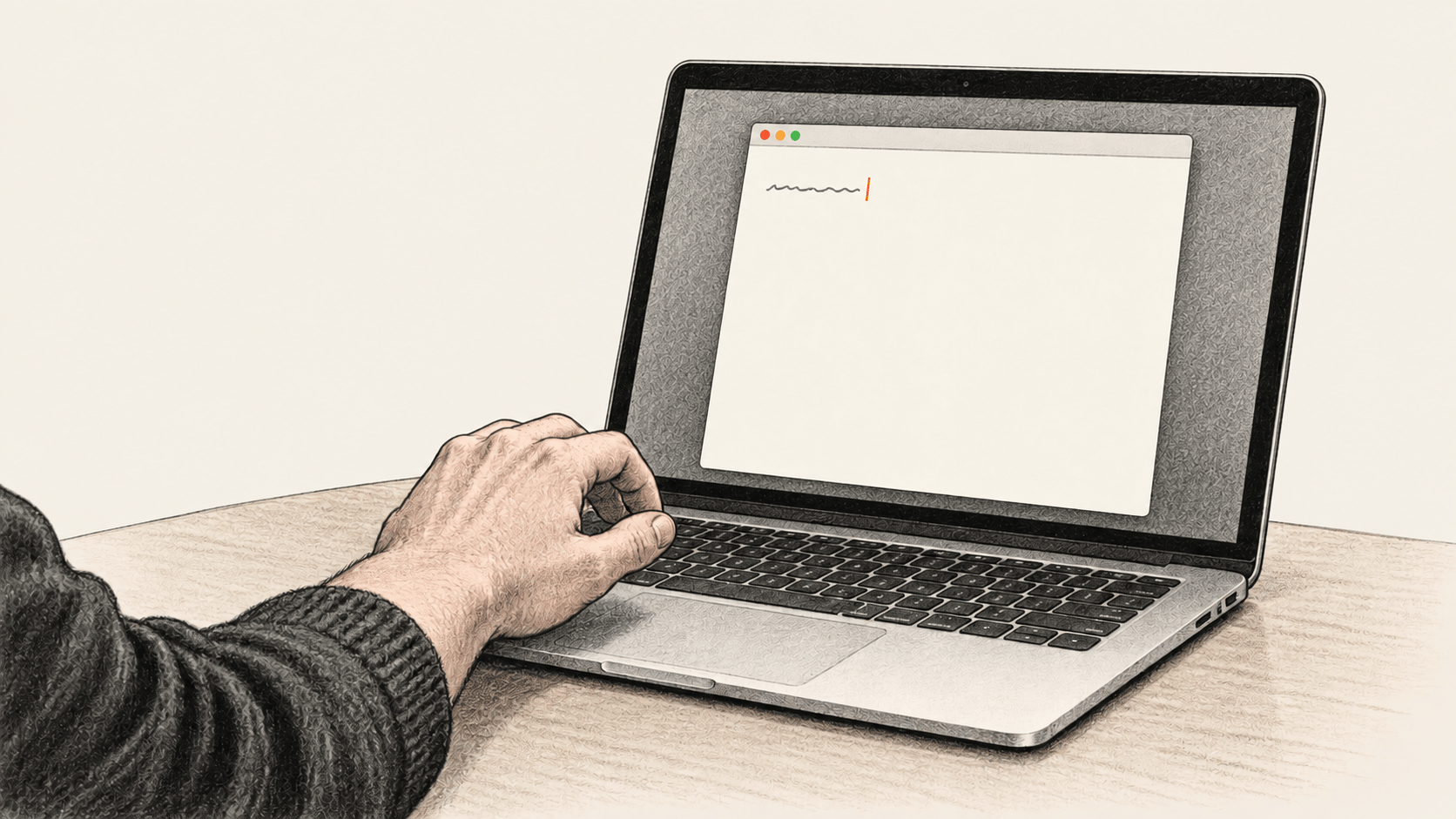
This first Claude Code computer-use check is small: put a fixed line into a new, blank TextEdit document on a Mac and inspect it yourself. The procedure follows Anthropic’s current CLI manual; BIG CHANGE has not run it on a Mac or tested an account.
The big change
- What changed: Claude Code now offers native Mac screen control.
- Why it matters: The reader can compare a visible app action with the real document and the session’s account of it.
- What to watch: Check the requested app, the action and the result before widening the task.
Prepare an eligible session and an empty document
Use macOS, interactive Claude Code and claude.ai Pro or Max. Team/Enterprise, Windows/Linux, -p and third-party providers are ineligible; no minimum CLI version is listed. Record yours in Terminal:
claude --versionIf you still need the CLI or a first project check, follow our Claude Code installation guide. Choose a project you own for this session. Review its effective permissions, connected tools and startup instructions; the TextEdit prompt below does not remove the session’s other access. Check /status; if the server is absent, recheck eligibility.
Before asking Claude to act, close or protect unrelated sensitive TextEdit documents. Open one new blank document yourself through File > New; Apple says the opening dialog may instead show New Document. Check that it is empty. Use only the harmless line Claude computer-use check. TextEdit can autosave and may use iCloud under your settings, so keep private data out of this scratch document. Apple’s TextEdit guide has the menu paths; inspect the labels on your macOS version.
1. Enable screen control for this project
Open /mcp and enable computer-use for this project. Grant the requesting app Accessibility and Screen Recording; select Try again. Fully quit and restart that process if recording still fails.
2. Ask for one visible TextEdit action
Send this as a prompt, after you have confirmed the blank document:
Use computer-use only in the new blank TextEdit document I opened. Through its visible UI, choose Format > Make Plain Text if this document is rich text, then type exactly: Claude computer-use check. Capture the resulting document view and report whether the visible text matches. Stop there. Do not open another document, overwrite an existing file, use a shell or AppleScript to create the result, change app preferences, or send anything. If the blank document or expected control is missing, stop and report it.Approve only TextEdit and needed clipboard access. Other app approvals differ: Finder (file access); terminals/IDEs (shell access, clicks only); System Settings (system controls); browsers/trading (view-only); other apps (full control). This check establishes no larger automation result.
Watch the action. Esc or Terminal Ctrl+C stops it; exit frees the lock.
3. Check the actual document and finish
Read the TextEdit document yourself. Confirm the single line matches exactly, the document is plain text, and the captured view agrees with the real screen. Inspect the session’s actual computer-use activity: a prompt and a confident answer alone do not prove UI control. A file written by Bash or AppleScript does not pass this check. Keep any screenshot and session details private. Record the CLI and macOS versions, account eligibility, project, initial blank state, granted permissions, observed action, matching result or exact failure, and what you did with the scratch document.
If the document or Format menu differs, restore the blank starting state manually before one bounded retry. For another session’s lock, have its owner exit after preserving work; crashes clear automatically. Never delete the lock. Inspect any autosaved TextEdit file and choose its save or close action yourself. Exit; disable in /mcp if unwanted.
Pro and Max usage remains subject to plan limits. /usage shows plan usage; its locally estimated session dollar figure is not a subscription bill. There is no established fixed price for this TextEdit check. Claude Code Desktop uses separate setup and supports macOS and Windows; this Mac-only /mcp procedure is for the CLI.