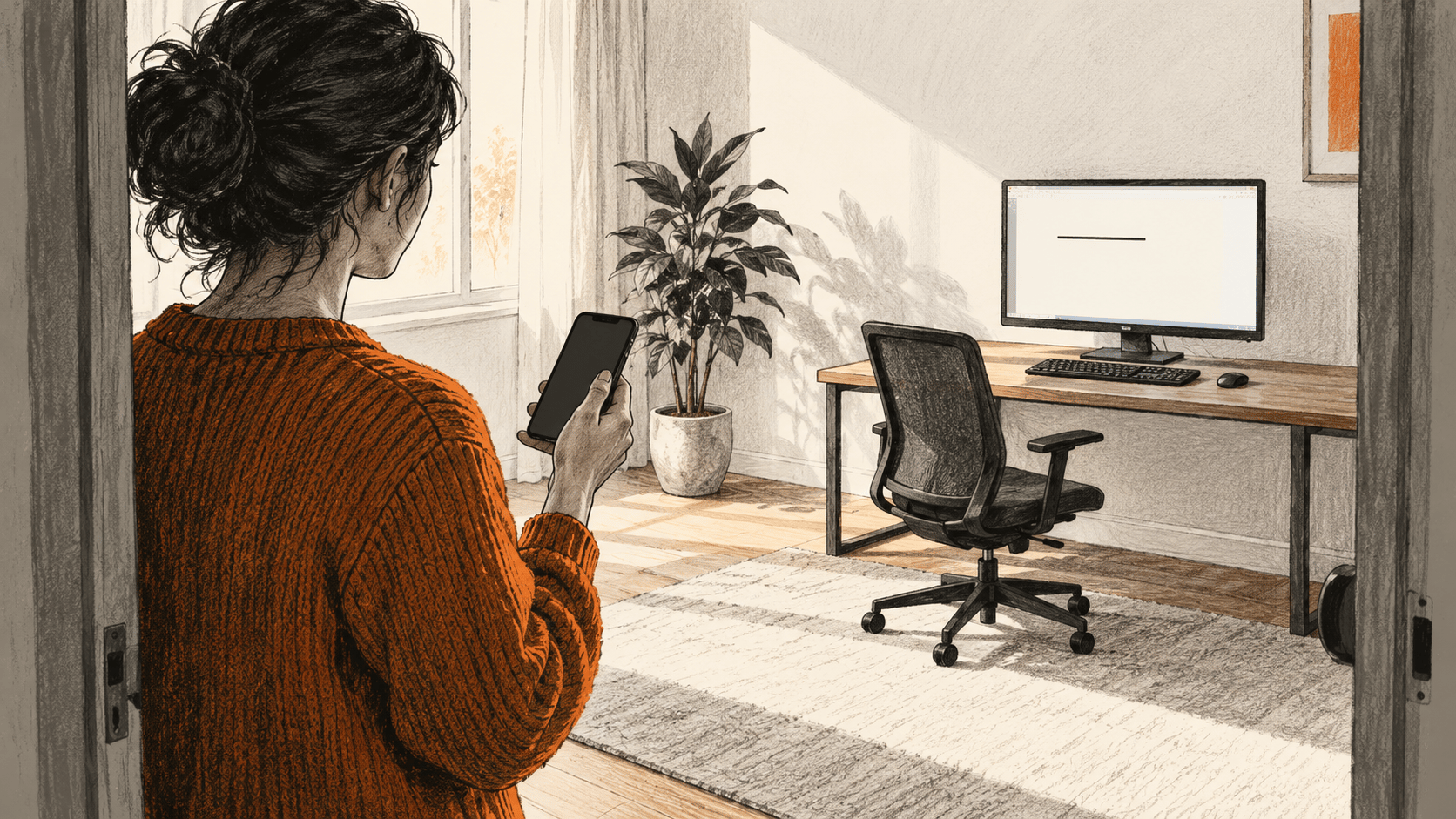
Start with a blank Notepad tab and a disposable line. Ask through Dispatch on your phone, then inspect that same tab on your Windows computer.
The big change
- What changed: Dispatch can hand a phone request to an app on the user's awake computer.
- Why it matters: The user can request a local action while away from the keyboard. The actual result still needs a check at the computer.
- What to watch: The useful boundary is the permission and result check. Keep the first action narrow, inspect the app afterward and stop when the session takes an unexpected route or its state is uncertain.
Before you leave the Windows computer
This documentation-based procedure is for existing eligible users. Dispatch remains a limited beta for some existing Pro and Max users, unavailable to new users. Use current phone and Windows x64 desktop apps on the same account. Keep both online, the computer awake and Claude Desktop open.
- Update and open Claude Desktop. Cowork's current instructions put Computer use in Settings > Capabilities. If that section is absent, check Settings > System, under This computer. Turn on Enable computer use. The separate Claude Code Desktop reference says the Windows toggle takes effect immediately. If neither layout has it, check plan and app version, then update and restart. This typed task needs no microphone permission.
- Open one new blank Notepad tab or window on that computer. Identify which tab you mean, and check that its entire content is empty. Choose one harmless, disposable line of your own text; call it
MY_LINE. Close sensitive windows: computer use takes screenshots. - In Cowork, open Dispatch, choose Get started, review file-access and keep-awake options, then choose Finish setup. The conversation syncs across devices. Grant only needed access.
Send one bounded request from the phone
- In Dispatch in the Claude phone app, replace
[MY_LINE]below with your chosen line and send the request:
On my awake Windows computer, use computer use to type this exact line once into the one blank Notepad tab or window I left open: `[MY_LINE]`. Then stop. Do not use Save or Save As, close the tab or window, open another app, change another file, use a shell, connector or file-editing tool, or send the text elsewhere. If you cannot use computer use in Notepad, stop and tell me the blocker. Tell me what you actually did and saw.The prompt does not prove the route. Cowork can choose a connector or browser ahead of screen interaction. Count this check only when computer use acts in local Notepad; a cloud, connector or file-edit result does not meet it.
- Stay available for the per-app permission prompt. Approve Notepad only if the named app and access level match; deny anything unexpected. Inspect the desktop session if approval is needed or the task pauses.
- Read the reported outcome on the phone. Then inspect the same Notepad tab or window on the computer. Read its full content: it should be exactly your
MY_LINE, appearing once, with no extra line or unrelated visible change. If you cannot inspect that window, the local result is unverified. Do not infer a successful app action from the phone message alone.
When a step does not match
If Dispatch is absent, stop. If the devices lose contact, check their connections and the desktop's awake/app state. Inspect the existing task and Notepad before sending again; the first action may already have happened.
If computer use is disabled or Notepad permission denied, inspect the setting and prompt. For a wrong route, app or line, or a duplicate line, stop and inspect Notepad before retrying. You can stop the task, disable computer use and deny unwanted apps. Those controls do not undo an action already taken.
The request avoids an explicit Save or Save As. It does not establish that nothing reached disk: Notepad, Windows or the session may retain data through autosave or recovery. Use disposable text. This is a Windows x64 procedure for an eligible existing account. Check your plan's current usage limits; no per-task price or tested-success claim is made here.
For adjacent tasks, our Mac TextEdit first check starts at the local computer, while our Cursor iPhone guide uses a different remote agent. This Dispatch procedure needs its own phone-to-Notepad result check.