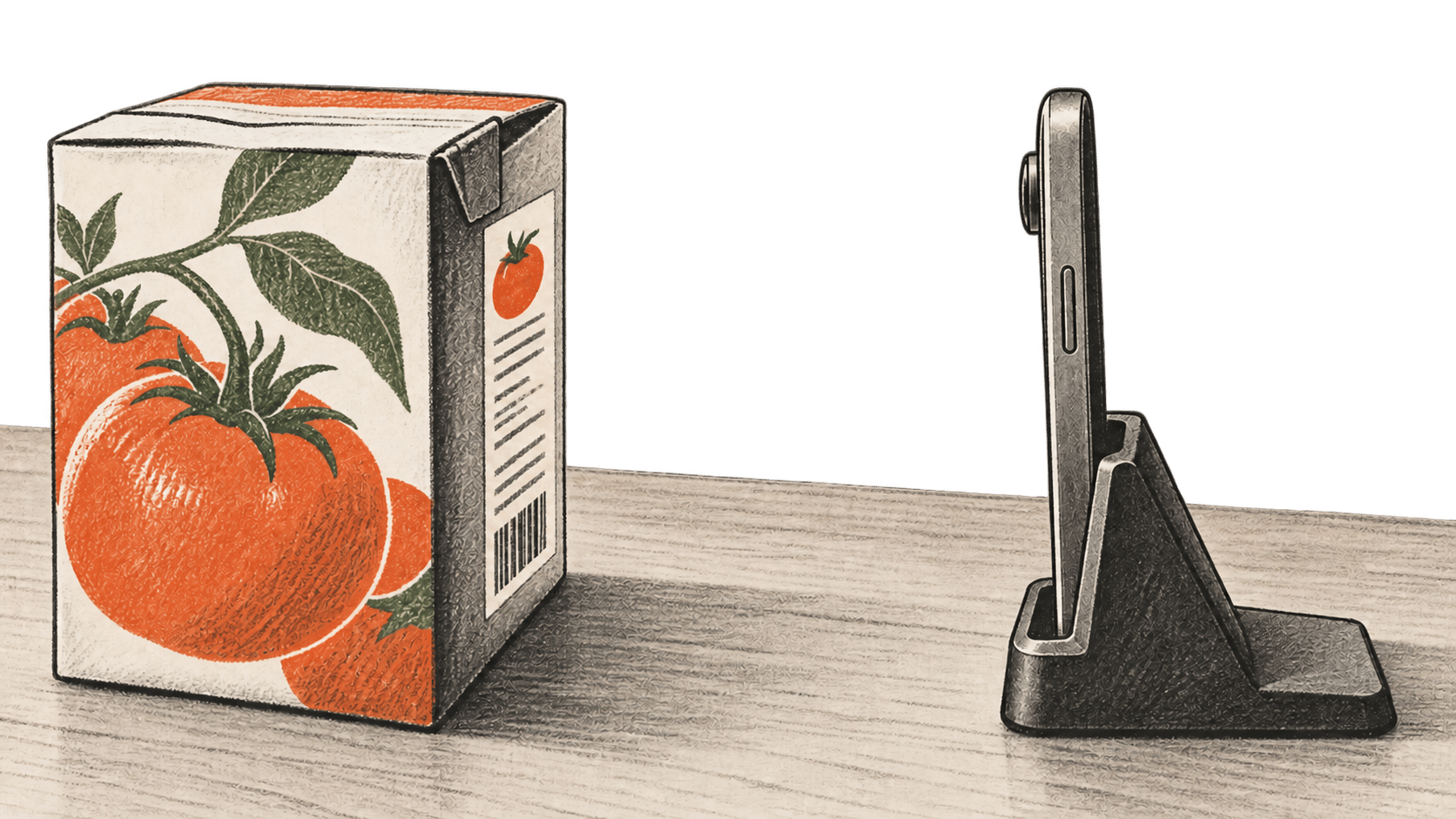
Google introduced Guided Vision in Gemini Live on October 1, 2026, for people who want spoken help with what their Android phone's camera sees. A small printed label is one of Google's examples. This guide brings together the setup and camera steps from Google's separate help pages. BIG CHANGE has not used the feature or checked how accurately it reads labels.
Safety first: Google warns that Guided Vision can make mistakes. It is not a medical device, mobility aid, navigation tool, obstacle detector, or replacement for a white cane. Continue using your established mobility aids and safe-travel practices. For a label that affects health or safety, verify the words through a reliable method before acting on them.
Check access before you start
Google says Guided Vision is available on compatible devices running Android 9 or later in regions and languages where Gemini Live is supported. It recommends updating Android and the Gemini app. The Gemini Live setup guide also calls for the latest Google app, a signed-in eligible Google account, and a user over 13 or the applicable age in their country. Gemini Live runs in the Android mobile app, not the web app. Google's mobile app setup page explains how to install Gemini if it is not on the device.
The Guided Vision help page says the feature is rolling out slowly, so an otherwise eligible user may not see its switch yet. Google gives no country-by-country Guided Vision list or firm date for each account in these pages. It states no separate price for Guided Vision; the cited pages do not specify a feature-specific allowance or charge.
Turn it on and read the label
- Open the Gemini mobile app on the Android device. Tap your profile picture or initial, then Settings. Turn on Use Guided Vision in Live. Google's help page says the on-screen notice may offer Start Live at this point.
- If Live did not start from that notice, tap Live at the bottom of the Gemini app or swipe left. Follow any first-use instructions. In Live, tap Camera to share the camera. Guided Vision works when the setting is on and the camera is shared in Live.
- Point the camera toward the label and ask Gemini to read it aloud. If the camera misses the text, listen for a spoken cue and adjust the framing. Google says Guided Vision can ask the user to pan or reposition the camera to get a clearer view.
- Listen to the description or reading and ask a follow-up if needed. The task's completion signal is a spoken description or framing cue while Live has the camera; it does not prove the label was read correctly. End the session with End Live session when finished.
Those controls are documented by Google. We have not confirmed their placement on a particular phone or observed a label-reading result. Google's Live camera instructions say camera sharing stops if you leave the app or lock the screen, and does not automatically restart when you return or unlock it. If the camera view disappears, return to Live and turn the camera on again.
Set up faster access if you use it often
Google documents an Android shortcut at Settings → Accessibility → Vision assistance → Guided Vision. Turn on Guided vision shortcut, then choose the floating accessibility button, a two-finger swipe up from the bottom of the screen, or a press and hold of both volume keys. With an updated TalkBack, a three-finger tap opens the TalkBack menu, where Guided Vision can be selected. These are optional ways to start Live with the camera; they do not remove the rollout and eligibility requirements.
Ask permission before including another person in a Live camera session, as Google's Live guide advises.
The big change
What changed: Google added a Guided Vision setting to Gemini Live and announced spoken descriptions and camera-framing cues for compatible Android devices on October 1.
Why it matters: A user can ask about a small label while sharing the camera and hear instructions to move the phone when the text is out of view. That is Google's documented workflow, not a result BIG CHANGE measured.
What to watch: The slow rollout means the setting may not appear yet. A spoken answer can be wrong, and Google excludes navigation, obstacle detection, medical use and mobility assistance. Check critical label text by another reliable method.
Sources & further reading
- Google, “Guided Vision in Gemini Live: built for accessibility,” October 1, 2026. Announcement, Android 9+ and Gemini Live availability, examples, shortcuts and safety limits. This is Google's description of its product.
- Google Gemini Apps Help, “Get audio descriptions with Guided Vision in Gemini Live”. Current switch, shortcut, TalkBack and warning instructions. It explicitly cautions that the feature is rolling out slowly.
- Google Gemini Apps Help, “Talk naturally with Gemini Live”. Account and age prerequisites, how to start Live, camera control and conditions that stop camera sharing.
- Google Gemini Apps Help, “Get started with the Gemini mobile app”. Installation and eligible device/account setup. These sources document intended operation; BIG CHANGE has not performed a hands-on test.