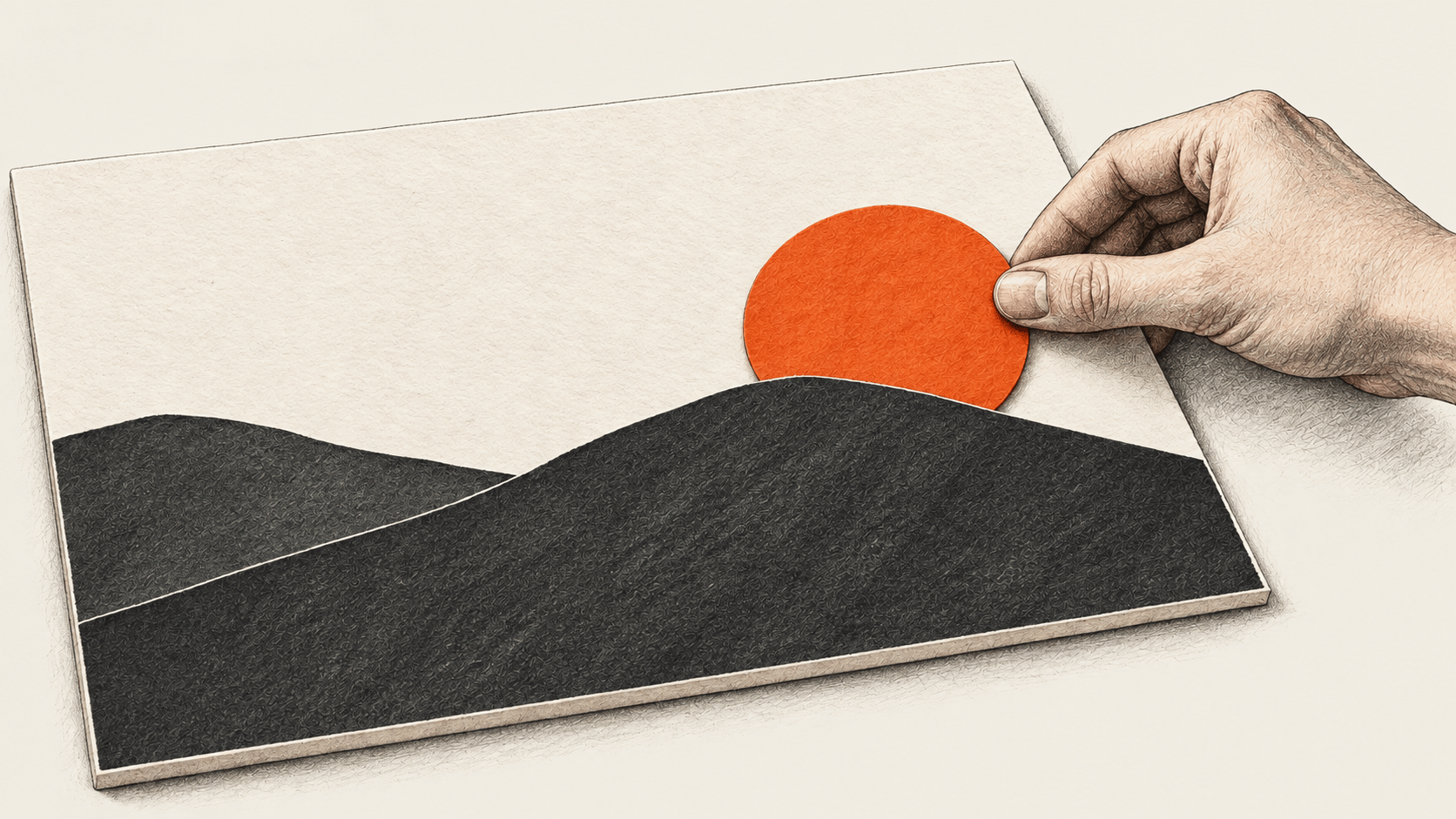
A flat graphic can be difficult to revise when one object needs to move. Canva describes the conversion in its Magic Layers guide. The useful result is more than a picture that looks right in the editor: you need a working design you can reopen and a separate image you have actually inspected. The checks below are our proposed way to decide whether the result is fit for your job. We reviewed Canva's public instructions on 27 October 2026. We did not use a Canva account or test a conversion or export.
The big change
- What changed: A flat graphic can be separated into editable parts.
- Why it matters: You can check one deliberate change against the untouched input.
- What to watch: The reopened master and the delivered file need separate checks.
Before you open the editor
Use an owned, single-page PNG or JPG, with no side above 5,000 pixels; exclude licensed images. Keep confidential material out of a workspace that is not approved for it. Check Magic Layers access and allowance in Settings → Billing → AI usage; plan terms vary. This guide cannot quote a fixed per-edit charge or promise a particular result.
Save the untouched input somewhere you can compare it later. Name the one change you intend to make. Write down the text, numbers, colors and layout features that must survive. If the graphic contains a claim, keep the approved source for that claim at hand. Decide who will approve the final image and where the working design and delivered file should live.
Make one controlled change
- In a desktop design, use Uploads. Select the image and choose Edit → Magic Layers. Wait for the result before assessing your chosen object.
- Move or resize one retained layer. Do not delete or replace it; you will test that same object's selectability later. Inspect the area around its old and new positions for visible damage.
- Compare the edited design with the untouched input at the size your recipient will see. Check the intended change and every item on your must-keep list. Look closely at edges, lettering and adjacent objects. Verify factual text against the approved record. If a critical part is damaged or an object has merged with another, stop and revise your approach instead of calling this version finished.
- Check the saved icon or File → Save; reopen from Projects and select the same retained object. Record the working design's name or location only after this check passes. A good-looking static image does not establish that the master remains editable.
- Choose Share → Download, PNG, then Download. Open the actual downloaded file outside the editor. Compare it with the approved original and your changed design at delivery size; check the text, edges, colors and intended movement again. Record the export filename and the version that passed.
Keep the input, approved working design and checked export distinct so a later correction starts from the right version. Confirm the recipient can access what you send. Sending the image alone does not give them your working file.
If a check fails
Blocked by access or a rejected input? Revisit the prerequisites. If separation looks poor, try a clearer flat graphic; photorealistic images may separate poorly. You can rebuild a critical element manually when the conversion is unsuitable. If the reopened object cannot be selected, do not describe that design as an editable master. If the exported PNG fails, correct the working design and inspect a fresh download. Get owner sign-off.
This workflow extends our earlier explanation of Canva Craft and Magic Layers with a specific check for an owned graphic. The earlier article covers the product announcement; this one is for someone delivering a revised file.